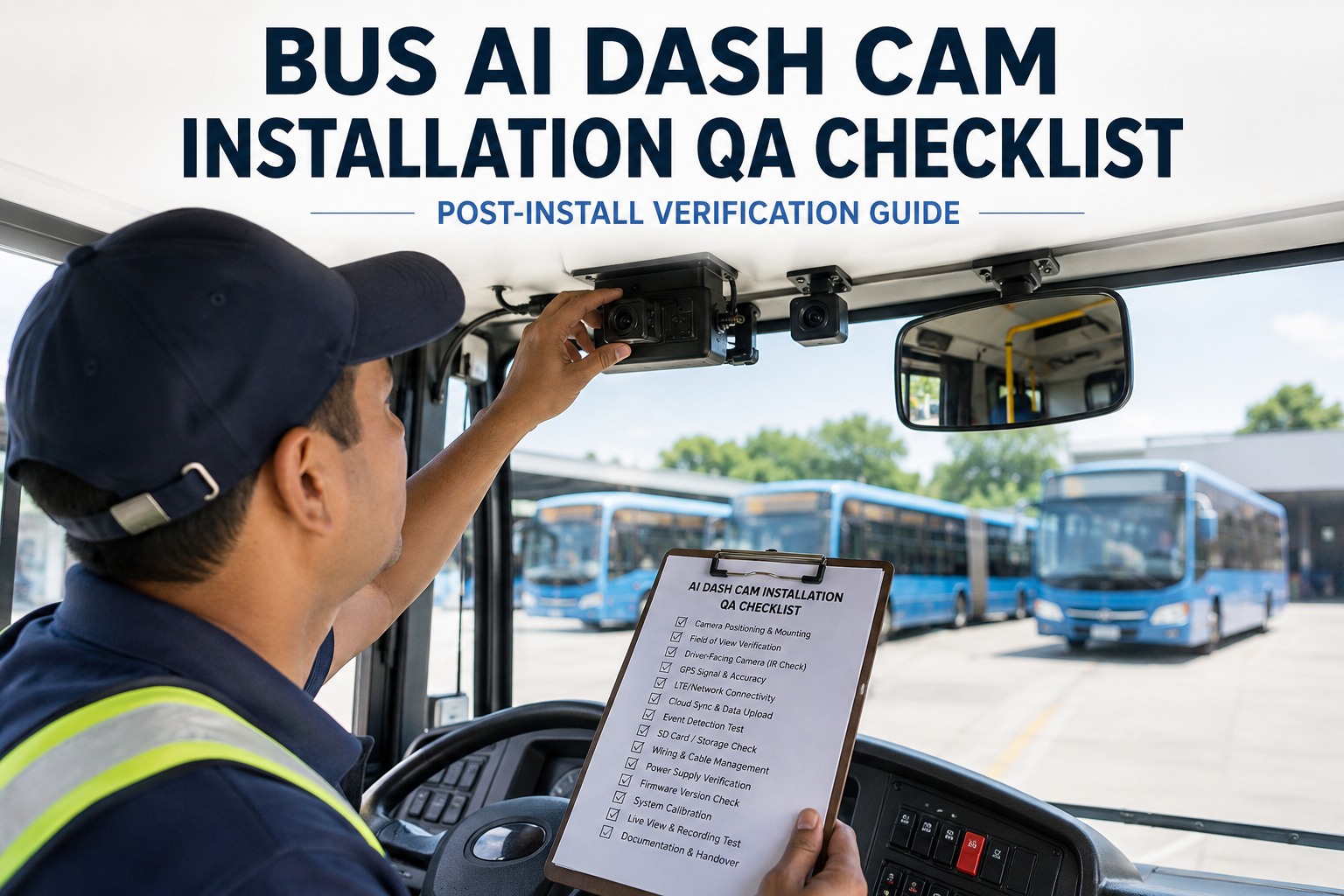
The install itself takes 90 minutes. The QA verification takes 20-30. Skip the second one and you find out about the failure the day your driver had the near-miss,and the camera captured nothing. This is the working inspection form. Complete all 8 categories before releasing the vehicle to service.
AI Dash Cam Installation Post-Install Verification
Certifies that an AI dash cam is mounted, connected, capturing, and documented correctly before the bus returns to revenue service. Applies to transit, school, and coach fleet installations.
The 4 Coverage Zones This Form Verifies
- Forward Road 120-140° FOV, 1080p+
- Driver Face Eye area centered, IR-capable
- GPS + Speed Within 5m, CAN-bus synced
- Cloud Pipeline Event to portal in <10 min
Camera Mounting & Field of View
6 checkpoints- 01.1Forward camera 15-20 degrees below horizontalWindshield top-center. No dashboard glare in daytime test recording.
- 01.2Driver-facing camera captures full face + eye areaDriver seated normally. Eyes centered vertically in preview feed.
- 01.3Infrared LEDs functional in low-light testCover cabin windows. Verify driver still identifiable in IR mode.
- 01.4Mount torqued to manufacturer specificationBracket locked. No rattle when door is slammed hard.
- 01.5Line of sight to license plate area unobstructedNo wiper blade, sun visor, or decal blocking forward camera view.
- 01.6Cables secured away from foot pedals and door swingLoom taped or clipped every 12 inches. No strain on connectors.
GPS & LTE Connectivity
5 checkpoints- 02.1GPS lock acquired within 60 seconds of power-onCold start in typical parking location. Log time-to-first-fix.
- 02.2Reported position within 5 meters of actualCross-check against phone GPS or known reference point.
- 02.3LTE signal at depot -100 dBm or strongerWeak signal at depot means events queue and delay upload.
- 02.4Vehicle registered and paired in provider portalBus number, VIN, and camera S/N linked in dashboard.
- 02.5Route-typical LTE coverage confirmedDrive representative route or check carrier coverage map for dead zones.
Book a demo to see LTE signal + GPS monitoring across a full fleet.
AI Event Detection
6 checkpoints- 03.1Harsh braking event triggered and capturedFirm stop from 20 mph. Verify event appears in portal within 10 min.
- 03.2Distracted driving alert functionalLook away from road 4+ seconds. Confirm in-cabin beep and portal alert.
- 03.3Following distance detection activePer model spec: verify tailgating detection at highway speeds.
- 03.4Speeding threshold synced to route limitsProvider database or manual config. Test at known speed limit.
- 03.5Fatigue detection tested (if equipped)Simulate long eye closure. Confirm alert path to driver and portal.
- 03.6False-positive rate acceptable for driver acceptanceRun 30-minute test route. Log false triggers. Adjust sensitivity if excessive.
Video Storage & Cloud Sync
4 checkpoints- 04.1SD card seated, formatted, U3/V30+ classCheck card class rating. Log serial number of card.
- 04.2Local retention window meets fleet policyTypically 7-14 days rolling loop. Verify overwrite behavior at capacity.
- 04.3Event uploads visible in cloud portalTrigger test event, confirm viewable in portal within 10 minutes.
- 04.4Video quality meets policy (1080p forward min)License plates readable at 30 feet in test recording.
Book a demo to see cloud sync + event capture at fleet scale.
Wiring & Power Integrity
5 checkpoints- 05.1Constant + ignition-switched circuits wired per specCamera runs parking mode on constant, records on ignition.
- 05.2Fuse rating matches manufacturer specificationNever over-fuse. Log fuse tap location and amperage.
- 05.3Ground connection solid to chassis (not paint)Scrape to bare metal or use dedicated ground stud.
- 05.4No exposed conductors in driver areaSplices heat-shrunk. Wire loomed inside dash trim.
- 05.5No interference with existing electronicsRadio, mDVR, Wi-Fi router, telematics all unaffected.
Firmware & Configuration
4 checkpoints- 06.1Firmware updated to latest stable releaseLog version. Older firmware has weaker AI detection accuracy.
- 06.2Fleet-specific event thresholds configuredAdjust harsh-braking G-force, speeding buffer, idle time per policy.
- 06.3Driver profile assigned to cameraEnables per-driver scoring where supported.
- 06.4OTA update capability testedTrigger small config push from portal. Verify camera accepts.
Book a demo to see firmware version tracking + config baseline per bus.
Operational End-to-End Test
5 checkpoints- 07.1Startup sequence completes cleanlyPower-on → GPS lock → LTE connect → recording within 5 minutes.
- 07.2Live view accessible from cloud portalConfirm remote video preview works from dispatch or office.
- 07.3Full event round-trip test recordedTrigger event, confirm portal upload, download clip, verify playback.
- 07.4Driver notification audible in cabinIn-cabin speaker/beeper loud enough over engine + HVAC noise.
- 07.5Tampering/disconnection alert armedBriefly disconnect and reconnect. Alert should reach portal.
Documentation & Records
5 checkpoints- 08.1Installation date + technician ID loggedTraceable to specific installer. Needed for warranty and audit.
- 08.2Camera S/N paired to Vehicle ID + VINCritical for asset tracking, resale, cross-fleet transfers.
- 08.3Firmware version at install capturedBaseline for future comparison when troubleshooting.
- 08.43-5 photos of installation locations capturedForward camera, driver-facing, wiring loom, fuse tap, mount hardware.
- 08.5Warranty registration completed with manufacturerRegister S/N under fleet name. Confirm coverage start date.
Book a demo to see the install-record template mapped to each bus.
Known Failure Modes to Watch For
- Driver-facing camera mounted too low. Crops eye area out of AI frame. Distraction detection silently fails. Fix at QA by seating driver normally and confirming eye centering.
- LTE dead zone on part of daily route. Events queue during dead zone, never upload. Verify signal along full route, not just depot.
- Ground loop causing video noise. Camera grounded to painted metal or shared with high-current device. Fix by re-grounding to bare chassis metal.
- Firmware not updated at install. Cameras ship with firmware 3-6 months old. AI accuracy improves each release. Always update before final QA sign-off.
- SD card too slow for continuous recording. Budget card meets minimum spec on paper but fails at sustained write. Use U3/V30+ from reputable brands.
Catching these five before the bus leaves the shop saves months of unusable footage. Book a demo to see the BusCMMS install-record template.
Certificate of Verified Installation
On completion of all eight categories above, complete the sign-off record. This is the document that supports warranty claims, insurance audits, and asset transfers.
Paper folders and shared drives lose lineage. BusCMMS pairs the camera S/N to the vehicle asset, attaches photos, tracks firmware baseline, and flags overdue re-verifications automatically. Book a 20-min demo → to see the full workflow, or start a 30-day free trial.
Portal shows camera offline even though power LED is on. What now?
Ninety percent of the time this is LTE registration failing at first boot. Confirm the SIM card is seated correctly, check the carrier account is provisioned for the device IMEI, and verify signal strength at the depot is at least -100 dBm. If those all check out, force a reboot by disconnecting power for 60 seconds. If the camera still reports offline after 15 minutes, the issue is likely at the provider portal side rather than the vehicle -- open a support ticket with the manufacturer.
Distracted driving alert never fires during test. Camera looks mounted correctly.
Two common causes. First, the driver-facing camera is mounted at an angle where eye tracking cannot register even though the face is in frame. Check that eyes are centered vertically in the driver-facing preview, not just visible in the corner. Second, the AI sensitivity threshold may be set too conservatively in the provider portal. Confirm the distraction detection is enabled at the account level, then verify the threshold matches fleet policy. A 4-second sustained gaze away from the road should trigger consistently.
Event uploads to portal but video shows scan lines or flicker.
This is almost always a ground loop caused by the camera sharing a poor ground with another electronic device. Locate a fresh ground point on bare chassis metal (not paint, not sheet metal, not shared with the mDVR or radio). Rewire the ground and retest. If the flicker persists, check the fuse tap location -- some fuse boxes have circuits that share high-current loads which introduce electrical noise. Move the constant-power tap to a cleaner circuit closer to the battery.
GPS shows the bus in the middle of a lake or on the wrong side of a highway.
GPS position offsets typically indicate the antenna does not have clear sky view or is receiving multipath reflections from nearby buildings and vehicles. Verify the GPS antenna (often integrated into the camera housing or a small puck on the roof) has line of sight to the sky. Metal roofs can attenuate the signal significantly on newer buses. If the camera has an internal antenna, confirm it is not mounted directly beneath a metallic dash trim piece. Cold-start accuracy improves after 5-10 minutes of driving as the receiver builds a better satellite fix.
Where do we file the completed sign-off record so it does not get lost?
Paper folders and shared drives are how installation records get lost between the install day and the warranty claim two years later. The safer approach is a bus-specific CMMS that ties the sign-off record directly to the bus asset -- camera S/N, install date, technician, firmware version, install photos, and warranty terms all in one profile. When something breaks two years later, the technician sees the full lineage instantly. When the insurer wants proof of due diligence, the record exports in seconds. BusCMMS is purpose-built for this workflow with bus-specific asset profiles and integrated photo storage. Book a 20-minute demo to see how sign-off records tie to bus asset history.