A disorganized bus fleet parts storeroom is one of the most expensive invisible problems in fleet maintenance. U.S. fleet managers consistently report that poor storeroom organization drives 22-38% of preventable work order delays -- not because the parts are unavailable, but because no one can find them, confirm current stock counts, or connect physical inventory to the CMMS work order system that needs it. This 35-step checklist covers every element of a professional bus fleet parts storeroom setup: physical layout, bin labeling, barcode and QR integration, safety stock levels, count procedures, and CMMS connection through Fleet Maintenance Software like BusCMMS. Use it on paper today or load it into BusCMMS where every step becomes a tracked, timestamped, assignable task with photo verification and sign-off. A properly configured storeroom that integrates with your CMMS reduces parts-related work order delays by an average of 64% and eliminates the phantom stock problem that causes emergency parts orders on parts you actually have.
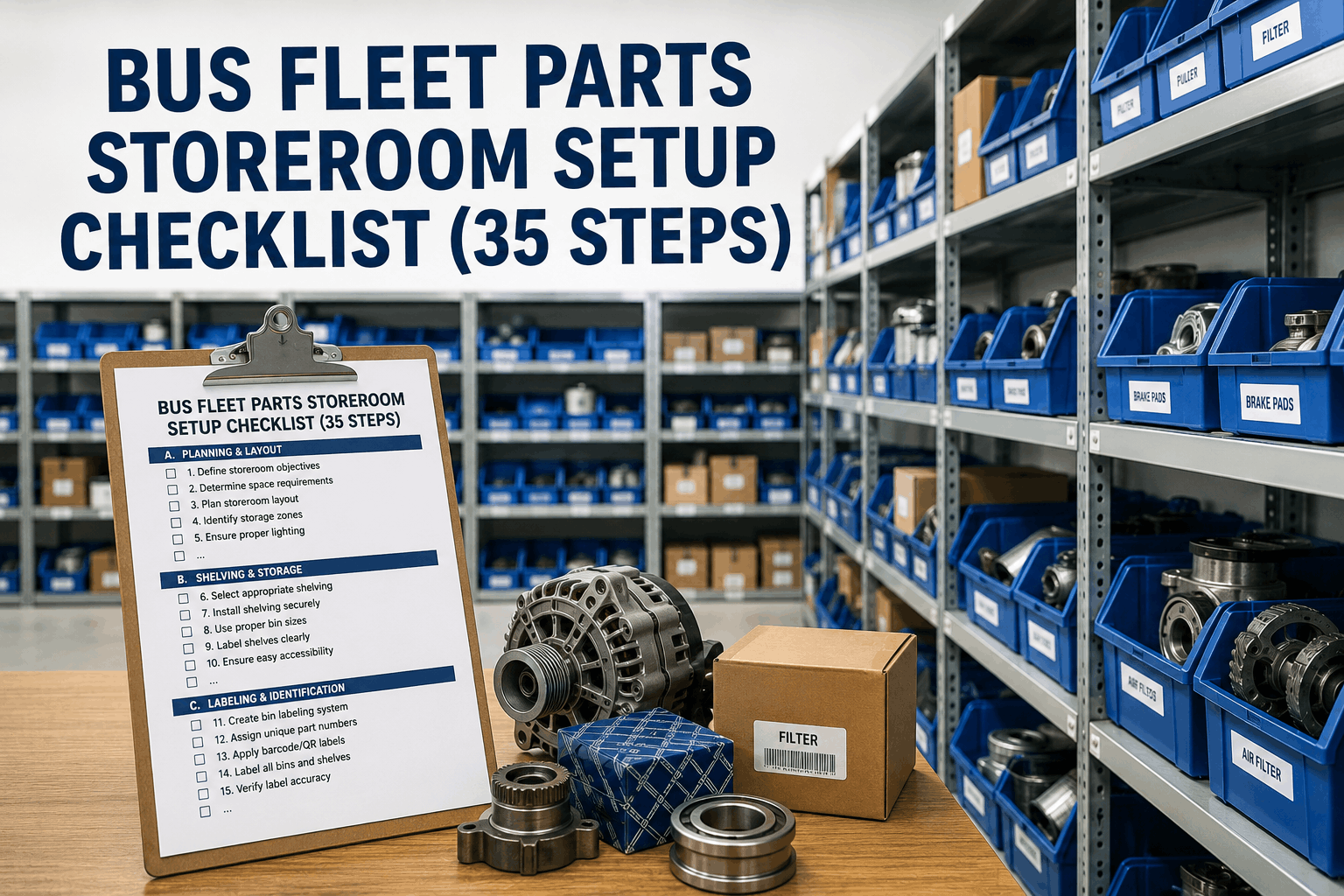
Bus Fleet Parts Storeroom Setup Checklist (35 Steps)
Physical layout to CMMS integration. Bin labeling to minimum stock levels. Every step a professional storeroom setup requires -- in the exact sequence you walk it.
How to Use This Checklist
Work through the 35 steps in zone order: Physical Layout first, then Storage Equipment, Bin Labeling, Barcode and QR Setup, Initial Count Procedures, CMMS Data Entry, Minimum Stock Configuration, and Storeroom Access and Security. Each zone builds on the last -- do not skip ahead to CMMS data entry before bins are labeled, and do not configure minimum stock levels before you have an accurate initial count. Check each item as completed. Items marked with a star are BusCMMS-specific steps that connect your physical storeroom to the digital Asset Tracking and Work Order Management system. The full checklist takes approximately 2 hours for a storeroom of 200-600 unique part numbers. Larger storerooms may require multiple sessions across 2-3 days.
Zone 1: Physical Layout and Space Planning (5 Steps)
Start by establishing the physical boundaries and flow of your storeroom before a single shelf is moved or bin is labeled. A storeroom with poor traffic flow creates daily inefficiency that no labeling system can overcome.
Zone 2: Storage Equipment and Shelf Configuration (5 Steps)
Shelf and bin configuration determines whether your storeroom scales as inventory grows. The wrong shelving decisions made today become expensive rework projects in 18 months.
Zone 3: Bin Labeling System (5 Steps)
The bin labeling system is the physical-to-digital bridge. Every label decision made here affects how accurately your CMMS can track inventory location and trigger reorder alerts. Invest time in this zone -- it does not get easier to fix after shelves are stocked.
Turn This Checklist Into a Digital Storeroom Setup Workflow
BusCMMS loads this exact 35-step checklist as a guided digital workflow. Every step is assignable to a team member, trackable with photos, and timestamped for accountability. Your storeroom setup becomes a documented project -- not a verbal to-do list. Free 14-day trial.
Zone 4: Barcode and QR Code Setup (4 Steps)
Barcode and QR integration transforms your storeroom from a manually managed inventory into a real-time CMMS-connected parts tracking system. This is the zone where physical storeroom operations connect directly to Maintenance Scheduling, work order parts allocation, and reorder automation in BusCMMS.
Zone 5: Initial Count Procedures (4 Steps)
The initial physical count is the moment your CMMS inventory module becomes trustworthy. A count done carelessly contaminates every downstream report, reorder trigger, and work order cost calculation. It is worth doing once and doing correctly.
Zone 6: CMMS Data Entry and Parts Catalog Setup (5 Steps)
The parts catalog is the backbone of your CMMS inventory module. Every future work order, reorder trigger, and cost report depends on the accuracy of the data entered in this zone. Rushing through CMMS data entry creates a database that produces misleading reports and unreliable reorder signals.
Zone 7: Minimum Stock Level Configuration (4 Steps)
Minimum stock levels -- also called reorder points or safety stock thresholds -- are the mechanism that prevents stockouts on critical parts. Setting them correctly requires combining vendor lead time data with your fleet's actual consumption rate per part number. Setting them too low causes stockouts. Setting them too high locks working capital in excess inventory.
Zone 8: Storeroom Access, Security, and Ongoing Procedures (3 Steps)
A perfectly organized storeroom will degrade rapidly without access controls and ongoing count procedures. The final zone establishes the operational rules that protect the setup investment.
Why Storeroom Setup Quality Directly Impacts Fleet Availability
Fleet managers often treat storeroom organization as a housekeeping issue rather than an operational performance issue. The data does not support that view. Research across U.S. bus fleets consistently shows that parts-related work order delays account for 22-38% of all unplanned bus downtime -- and that the majority of those delays are not caused by parts being unavailable, but by parts being present in the storeroom but unfindable, miscounted, or unlinked to the CMMS work order system. A technician spending 25 minutes searching for a part that is in the wrong bin, or discovering mid-repair that the CMMS shows 4 units in stock but the bin is physically empty, is experiencing a storeroom setup failure with a direct fleet availability cost.
BusCMMS eliminates the three most common storeroom failures: phantom stock (CMMS shows parts available that are not physically present), uncontrolled issues (parts taken from the storeroom without a work order record, creating inventory variances), and missing reorder alerts (parts running out without triggering a purchase order because minimum stock levels were never configured). When all 35 steps of this checklist are completed and connected to BusCMMS, those three failures become structurally impossible -- not dependent on anyone remembering to do the right thing.
Performance Impact: Storeroom Setup Quality vs Fleet Metrics
Emergency orders avg. fleet of 40 buses
Comparison: Manual Storeroom vs CMMS-Integrated Storeroom
| Storeroom Function | Manual / Paper System | BusCMMS-Integrated Storeroom |
|---|---|---|
| Parts Location | Memory or handwritten log | Bin address in CMMS, QR scan from any mobile device |
| Stock Level Visibility | Visual check only, often wrong | Real-time quantity updated with every issue and receipt |
| Reorder Trigger | Someone notices the bin is low | Automatic alert when quantity hits configured minimum |
| Parts Issue Recording | Paper log, often incomplete | Scan bin, enter qty, link to work order -- 15 seconds |
| Inventory Accuracy | 61% avg accuracy | 97% avg accuracy |
| Work Order Cost Capture | Manual entry, frequent omissions | Auto-calculated from issue records per work order |
| Cycle Count Process | Annual, manual, time-consuming | Auto-scheduled, variance-flagged, digitally recorded |
| Audit Documentation | Paper records, often incomplete | Digital, timestamped, exportable for any audit |
Our storeroom had parts everywhere. We had 400 part numbers in a room with no labels, no counts, and no system. Techs were driving to the parts store for things we already had on the shelf because nobody could find them. We followed this setup checklist and loaded everything into BusCMMS over three days. Within 30 days our emergency parts run frequency dropped from 9 per month to 2. Within 90 days our inventory accuracy was at 96%. The annual inventory value we recovered from parts we found that we did not know we had more than paid for the platform for two years.
Frequently Asked Questions
How long does it take to complete all 35 storeroom setup steps?
Can I import existing parts data into BusCMMS instead of entering it manually?
What barcode or QR equipment is needed to use BusCMMS inventory scanning?
How often should cycle counts be performed in a bus fleet storeroom?
What is the right minimum stock level for brake pads on a 40-bus school fleet?
Does BusCMMS generate purchase orders automatically when reorder points are hit?
How does BusCMMS handle parts returned to stock from a completed work order?
Is this storeroom setup checklist compliant with federal and state fleet audit requirements?
Your Storeroom Is Step 1. Your CMMS Is Step 2.
BusCMMS connects your physical storeroom to every work order, every PM schedule, and every reorder trigger in one platform. Real-time inventory. Auto reorder alerts. Instant parts-to-work-order linking. Built for U.S. bus fleets. Free 14-day trial.
Conclusion: A Storeroom That Works With Your CMMS Is a Competitive Advantage
Most U.S. bus fleet storerooms are organized by habit rather than system. Parts are where they have always been. Counts are approximate. Reorder decisions are reactive. The result is a constant background friction that slows every work order, inflates every repair cost, and quietly degrades fleet availability one missed parts transaction at a time. The 35-step checklist on this page is the complete specification for a storeroom that eliminates that friction permanently -- physically organized, digitally labeled, CMMS-connected, and self-maintaining through automated cycle counts and reorder alerts.
The fleets that complete this setup do not just run cleaner storerooms. They run faster work orders, more accurate cost reports, better-justified capital requests, and cleaner DOT audits. Every one of those outcomes traces back to a parts record with a bin address, a physical count, a minimum stock level, and a QR code on the shelf. Start Free with BusCMMS today and set up your first parts record in under 5 minutes -- or Book Demo for a guided storeroom integration walkthrough with a BusCMMS fleet specialist.