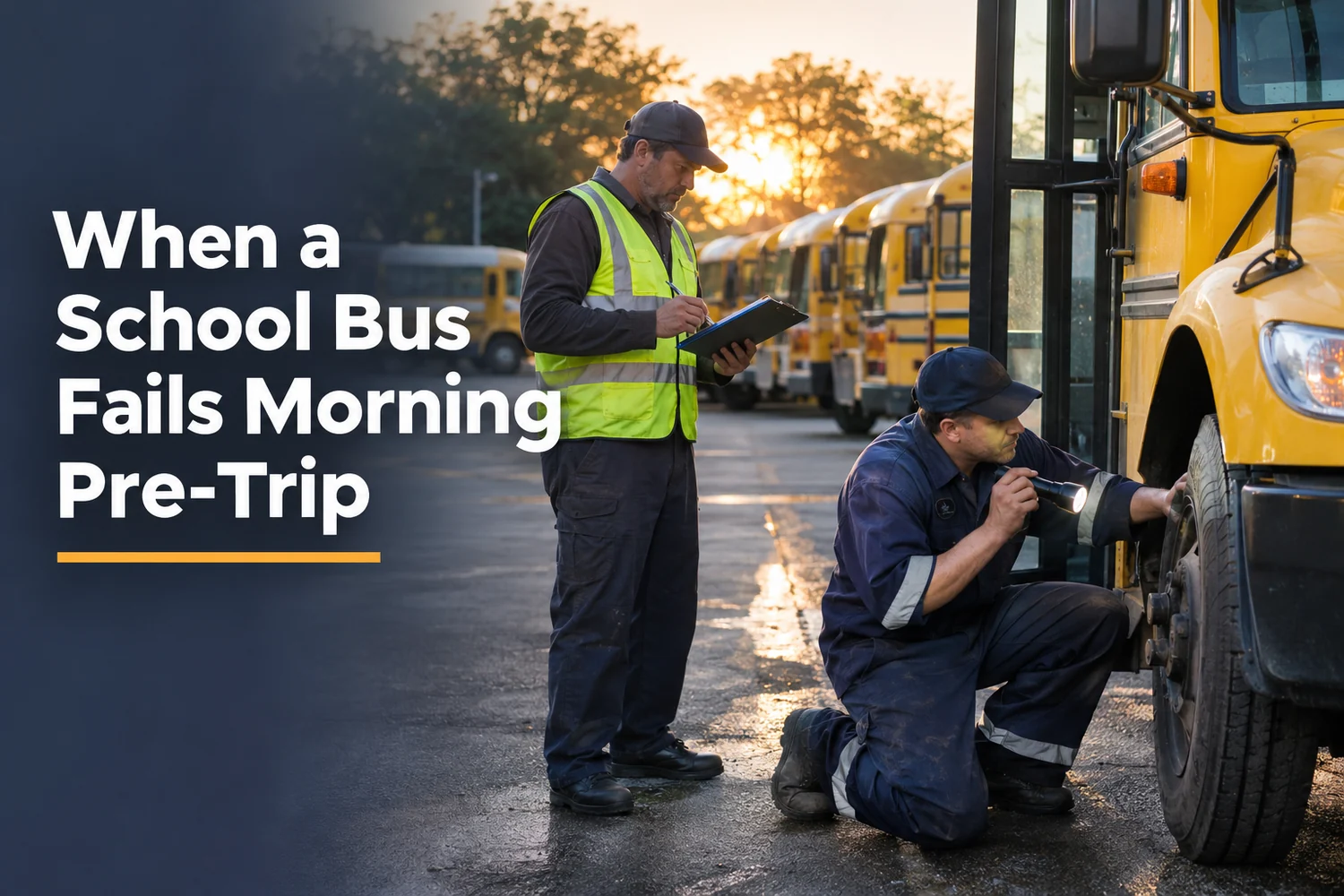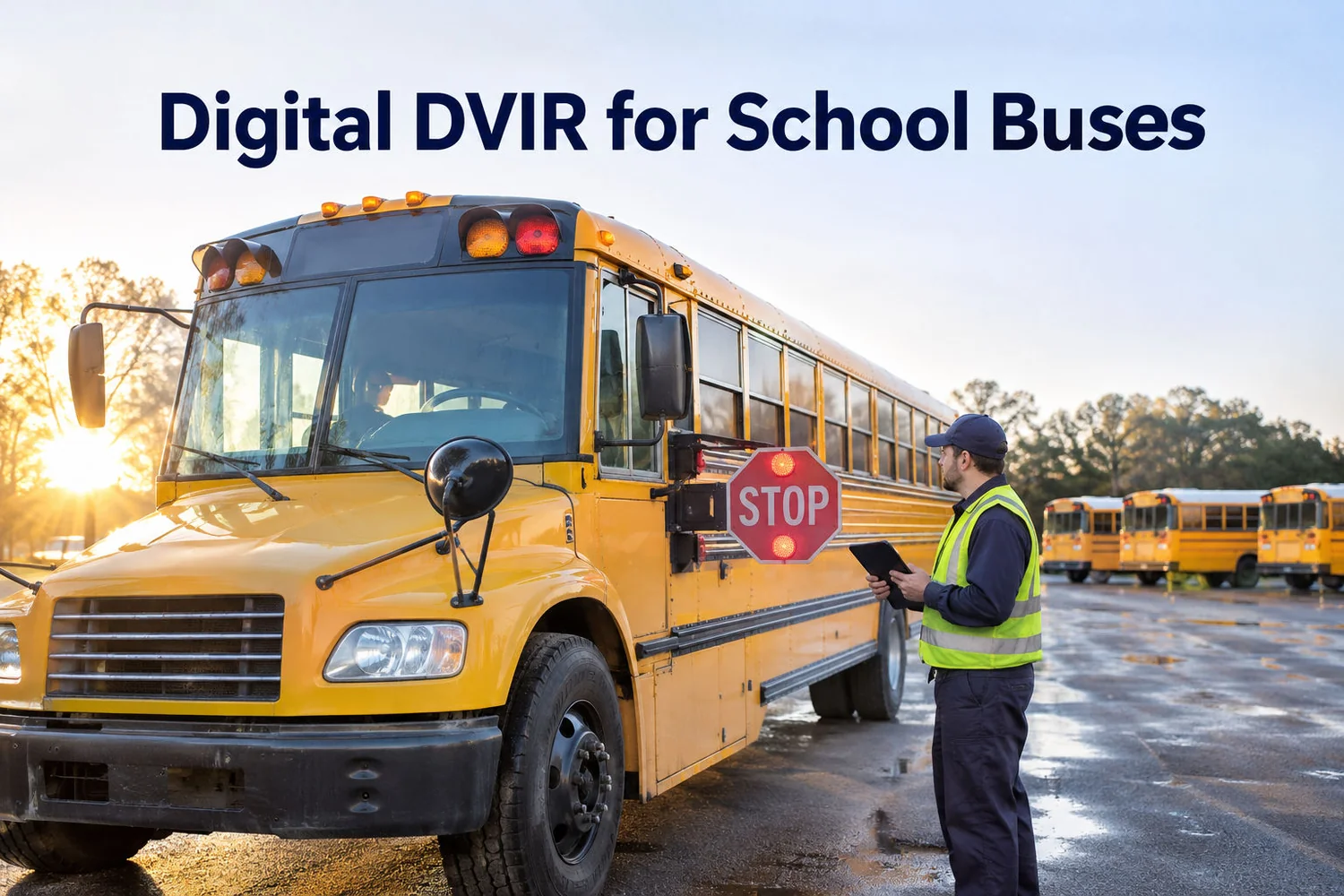
It is 6:48 on a Tuesday morning and the stop arm on Route 14 quits halfway out. The driver from the afternoon before wrote "stop arm slow" on a paper form, and the shop never saw it. (An illustrative scenario, not a customer account.) Digital DVIR for school buses closes that gap: a photo-backed inspection where a failed item opens a maintenance work order instead of waiting in a binder. You can see that handoff in a demo.
Digital DVIR for School Buses: Photo Inspections
A failed stop arm, gate, lift or exit check should reach the shop as a work order, not a line on a form. Here is what to check, how the flow works and what it looks like in the portal.
Why a Paper DVIR Loses the Defect
The defect in that story was found and written down. What broke was the handoff: paper records the problem, then depends on one person walking it to another.
No evidence
"Arm slow" could mean anything. Without a photo the shop guesses what to bring.
No routing
A line on a form is not a work order. Someone has to retype it, and someone has to notice.
No visibility
The next driver starts a pre-trip blind to the last report on that bus.
Run the same Monday digitally and the driver taps Fail, adds a photo and note, signs on screen and submits. The failed item creates the maintenance work order on its own.
The Bus-Specific Checks to Test First
The federal list does not cover the whole bus. The federal DVIR rule lists parts such as service brakes, tires, lighting devices and emergency equipment, but not the stop arm or the wheelchair lift. Your state rules and your own checklist cover the rest.
Stop arm and warning lights
Extends fully, holds position, retracts and latches, with 8-way lights alternating amber, then red. Photo on Fail: the arm at its stall point or a dark lamp.
Crossing gate and mirrors
Gate extends and stows without sticking, and crossview mirrors are secure. Photo on Fail: gate position, bent hardware or cracked glass.
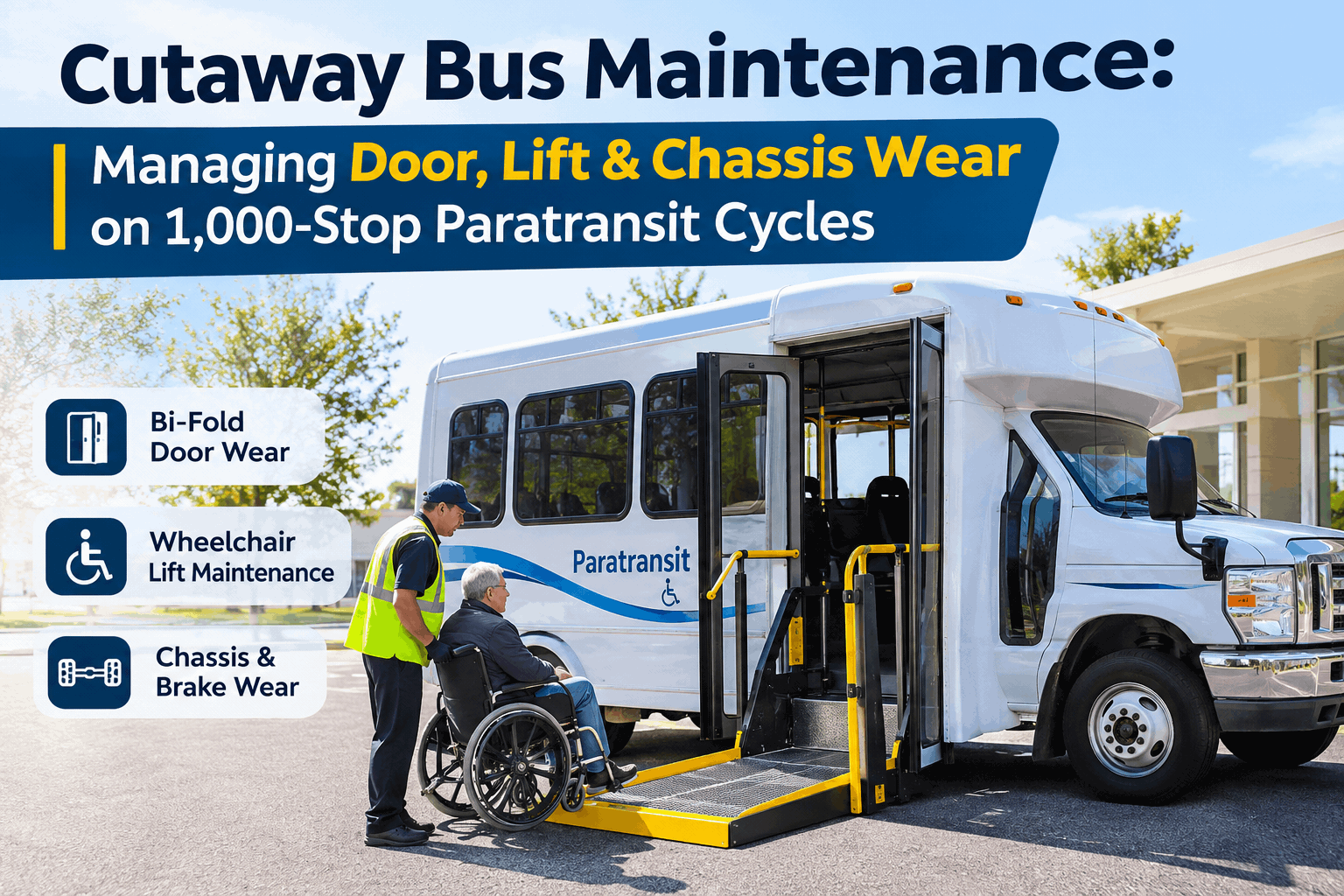
Wheelchair lift
Deploys and stows through a full cycle, with edge barrier, controls and tie-downs intact. Photo on Fail: fluid at the lift or a frayed strap.
Emergency exits
Door, roof hatches and push-out windows open and latch, with seals and labels intact. Photo on Fail: a latch or a torn seal.
Our starter checklist runs to 33 items in 7 zones; treat it as a starting list, not your state's required one. Test steps are in the stop arm and crossing gate checklist and the wheelchair lift inspection checklist.
How a Photo-Backed Digital DVIR Works
Bus CMMS runs the inspection on a phone or tablet. This is the path a failed stop arm takes.
Scan or pick the bus
A QR code on each bus opens the right checklist, with no login or typing needed.
Mark each item
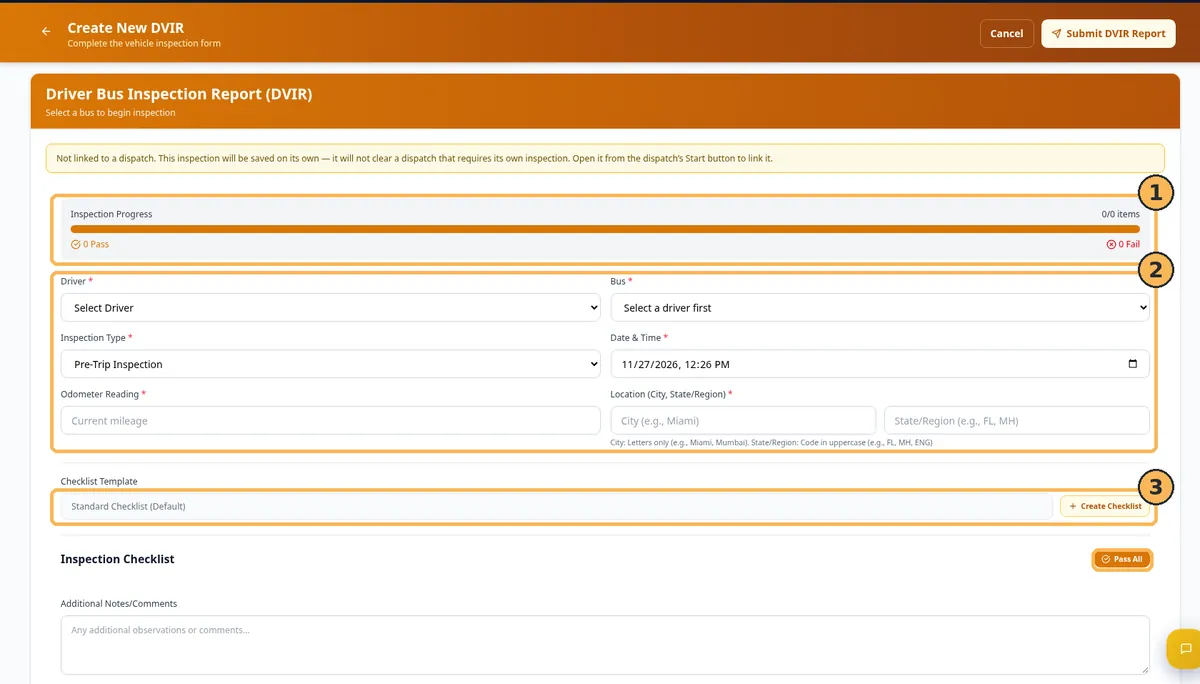
Pass, Fail or N/A for a pre-trip or post-trip. Pass All speeds up clean walk-arounds, and an admin can hide it.
Fail means evidence
A failed item gets a photo and a note. Admins can require both, plus GPS location.
Sign and submit
The driver signs on screen. The failed item auto-creates a maintenance work order, and the signed report is stored as a searchable record.
Drivers still walk the bus and cycle the arm, gate and lift; the app records what they find. You can start free and set up your checklist, or book a demo and see it with your own buses.
Your Paper-to-Digital DVIR Checklist
Hold this list against your paper process. Each row is a gap that lets a defect slip, and each is something the inspection flow handles.
- Evidence on every FailPhoto and note on the failed item; admins can require both.KEY
- Failed item reaches the shopThe failed item auto-creates a maintenance work order.KEY
- No skipped itemsAdmins can block submit until required tasks are done.VERIFY
- Signed on screenThe driver signs on the device when submitting the report.VERIFY
- Finding an old reportSearchable by driver, vehicle, date or status, with audit export.VERIFY
- Dead zones at the lotWorks offline and syncs later.VERIFY
The two key rows keep a defect from dying in a binder, and the settings sit on the Bus CMMS inspection software page. To test it fairly, book a demo and bring last month's paper forms.
How Bus CMMS Runs the Digital DVIR
Bus CMMS keeps the checklist, the evidence and the work order in one place. Two screens from the portal show where each part lives.
Custom checklists
Build your own school bus checklist and add items by category, so the stop arm and lift sit beside the standard items.
Photo, note and GPS
Drivers attach photos and notes from a phone or tablet, and admins can require a photo, notes and GPS location.
Failed item to work order
A failed item auto-creates a maintenance work order, and the signed report is kept as a searchable record.
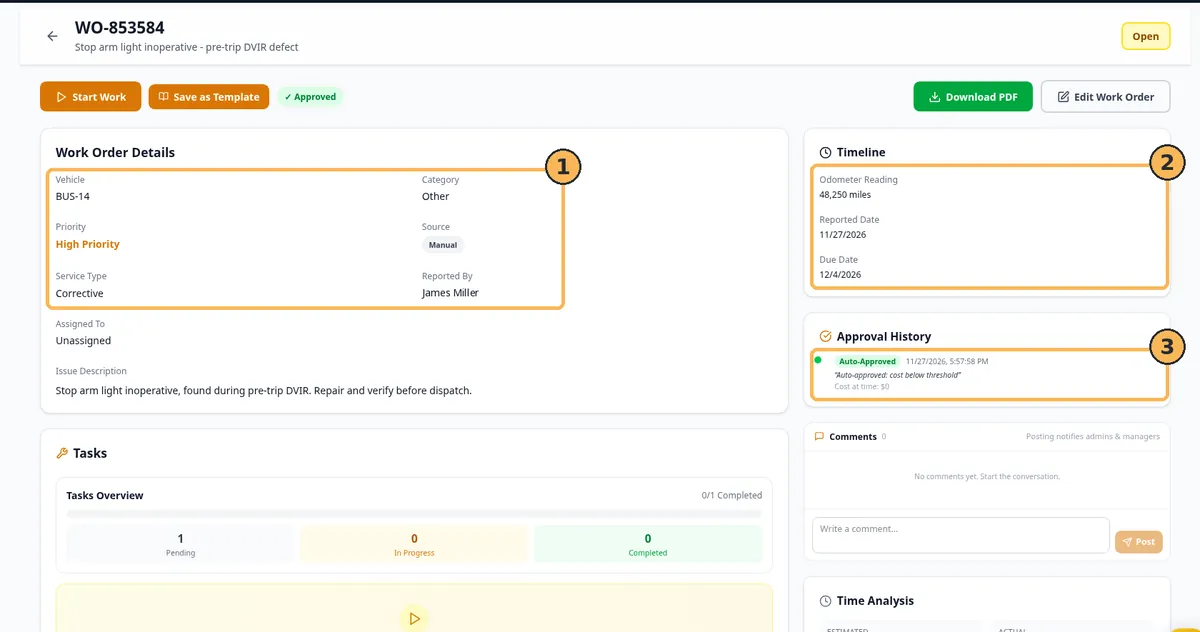
One record from tap to repair. See how it fits school bus fleet maintenance.
A School Bus Fleet Supervisor's Take
Key Takeaways on Digital DVIR for School Buses
A digital DVIR protects the one thing every defect report depends on: reaching the shop. Four things to carry back to your lot.
Close the handoff
A defect only counts once the shop sees it.
Test the bus-specific gear
Stop arm, gate, lift and exits on every walk-around.
Photograph every Fail
Evidence beats "arm slow."
Let the work order open itself
The failed item creates it on submit.
Close the handoff, test the bus-specific gear, photograph every Fail and let the failed item open the work order. A DVIR is only as good as the number of defects that reach someone who can fix them before the bus rolls.